4GAEOP
  • Home
  • Resources
  • Shortcuts and Timesavers
  • Microsoft 365
  • Excel One
  • Excel Two
  • EXCEL THREE
  • The Art of Sway
  • PowerPoint
  • OneNote
  • Publisher
  • Google
    • Google
    • Google Draw and Forms
  • Adobe Forms
  • Word Basics
  • Outlook Basics
  • Outlook Advanced / Google Surveys
  • Contact Us
  • Social Media
  • Calendar Tricks
Picture

EXCEL BASICS FOR GAEOP

Let's Do a Fund Raiser!


First Steps:
  • Sign in on the whiteboard with your email address, first name and last name,  For example mine is [email protected], Cherie, Anderson and Celia's is [email protected].
  • Open Outlook on the computer, not the Web version, 
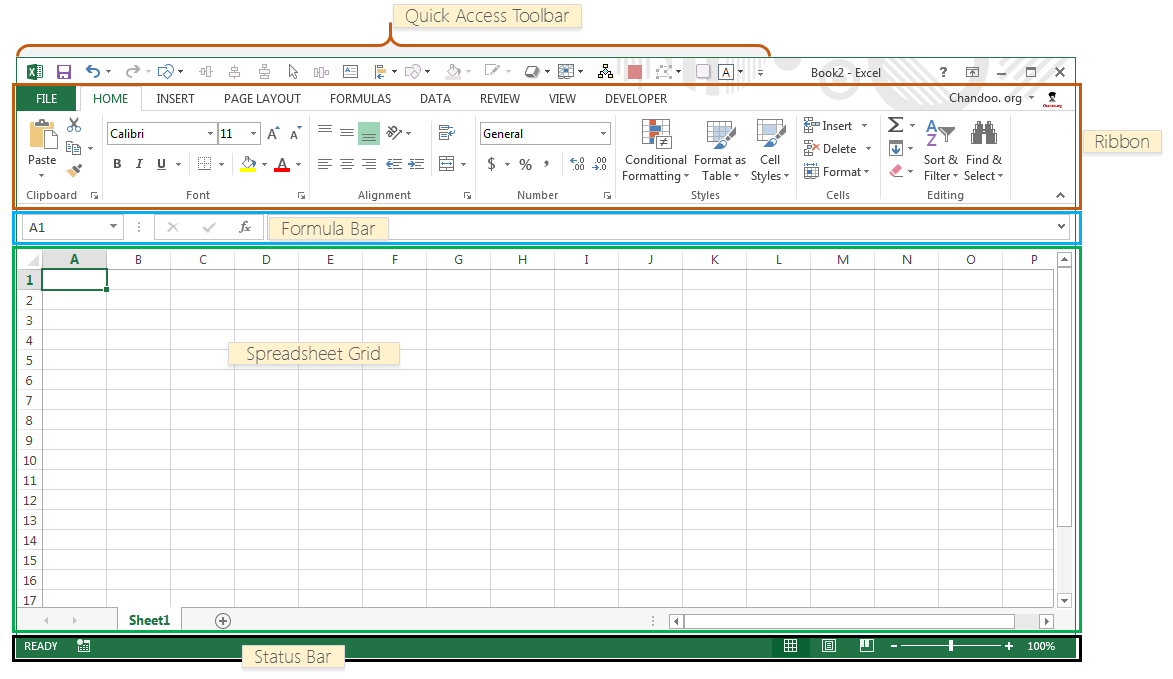
  • Open Excel on the Computer.
  • Begin an email to yourself with this statement, "One thing I learned today that I know I can use  is......
Picture
Picture

Formatting A Sheet

  • Create a workbook with these columns headers:
    • First Name, Last Name,  E-Mail, Chocolate Bars, Cookie Dough, Wrapping Paper.
  • Add some fake names, include two folks on the whiteboard.
  • Add columns, sizing cell, row height, column width
  • Add grid lines, fill in the headers
  • Pull down copying, format time, dates, numbers
  • Add column called Due Date
  • Add a style and theme to your page.
  • Format Painter


Picture

Let Excel Do Your Math

We are going to multiply, add and average with excel
  • Use the syntax Sum=(cells to add) to add
  • Use the syntax =(Cell*Cell) to multiply
  • Use the syntax =average(cell to cell) to find a mean average
  • Insert formula to multiply to find the price owed by each user on  each item, Cookie dough, Chocolate bars and Wrapping Paper.
  • Copy formula from one row to all the rows.
  • Insert a formula to total the number of chocolate bars, wrapping paper, and cookie dough you need to order.
  • Insert a formula to find the total of all sales.
  • Save this file in your M drive for use in the Excel Two class.
Picture

Email Merge

We are going to use the Mail Merge Wizard to create a personalized email to many users in just a few minutes.
  • Add a column called "Due Date" to the right.  Fill it
  • Save the worksheet to your desktop.
  • Open a word doc, in the Start Mail Merge group, on the Mailings tab, click Start Mail Merge, and then click Step by Step Mail Merge Wizard..
  • We will choose the option of email messages,
  • choose the worksheet in which our information is stored,
  • edit our recipient list,
  • type the content adding placeholders for the info from the spread sheet. 
  • Check a few of the recipients, 
  • Pull the trigger and send them all.
gaeop__excel_basics__november_10.docx
File Size: 89 kb
File Type: docx
Download File

  • Home
  • Resources
  • Shortcuts and Timesavers
  • Microsoft 365
  • Excel One
  • Excel Two
  • EXCEL THREE
  • The Art of Sway
  • PowerPoint
  • OneNote
  • Publisher
  • Google
    • Google
    • Google Draw and Forms
  • Adobe Forms
  • Word Basics
  • Outlook Basics
  • Outlook Advanced / Google Surveys
  • Contact Us
  • Social Media
  • Calendar Tricks